Registration
Welcome to ResearchConnectX! This guide will walk you through creating your account.
Registration Options
ResearchConnectX offers multiple ways to register:
Email Registration
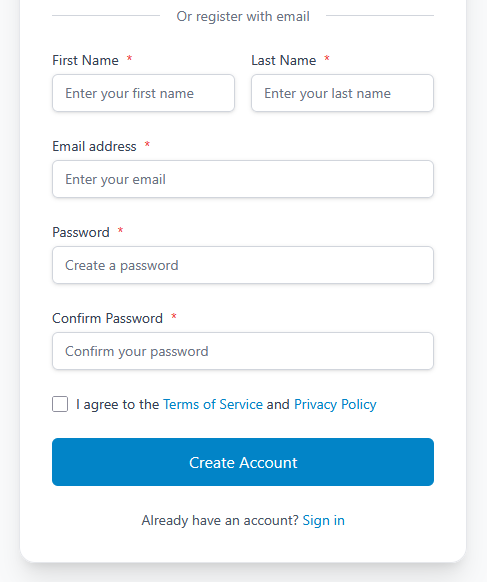
- Navigate to the ResearchConnectX homepage
- Click Sign Up or Register
- Enter your details:
- First Name
- Last Name
- Email Address
- Password (must meet security requirements)
- Confirm Password
- Agree to the Terms of Service and Privacy Policy
- Click Create Account
- Check your email for a verification link
- Click the verification link to activate your account
Single Sign-On (SSO) Registration
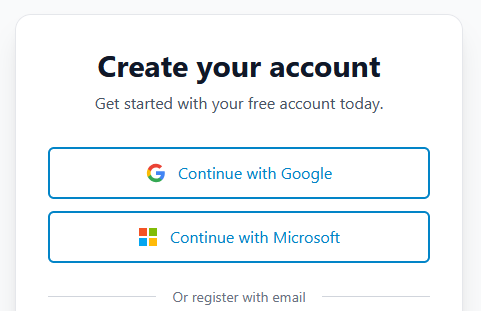
ResearchConnectX supports registration through institutional and third-party authentication providers:
Google OAuth
- Click Sign in with Google
- Select your Google account
- Grant necessary permissions
Microsoft Azure AD
- Click Sign in with Microsoft
- Use your institutional Microsoft account
- Authorize ResearchConnectX to access your profile
Password Requirements
If registering with email, your password must:
- Be at least 8 characters long
- Contain at least one uppercase letter
- Contain at least one lowercase letter
- Contain at least one number
- Contain at least one special character
After Registration
Once you've created your account, you'll be guided through:
- Profile Setup - Add your basic information and academic details
- Research Interests - Specify your research areas
- External Profile Linking - Connect Google Scholar, ORCID, etc. (optional)
See the Profile Setup Guide for detailed information on completing your researcher profile.
Troubleshooting
Email Verification Issues
- Check your spam/junk folder
- Request a new verification email from the login page
- Ensure your email address was entered correctly
SSO Login Problems
- Verify you're using the correct institutional credentials
- Contact your IT department if institutional SSO fails
- Try clearing your browser cache and cookies
Account Already Exists
- If you see "Email already registered," try logging in instead
- Use the Forgot Password option if you can't remember your password
- Check if you previously registered using SSO
Linking SSO to Existing Account
If you already have a ResearchConnectX account and want to link an SSO provider:
- Log in to your existing account
- Go to Settings > Account Settings
- Navigate to Linked Accounts
- Click Link next to your preferred SSO provider
- Complete the authentication process
Security Features
Two-Factor Authentication (2FA)
After registration, we recommend enabling 2FA for added security:
- Go to Settings > Security
- Enable Two-Factor Authentication
- Scan the QR code with your authenticator app
- Enter the verification code
Recovery Email
Add a recovery email address to help regain access if you're locked out:
- Go to Settings > Basic Profile
- Add a Recovery Email
- Verify the recovery email address
Next Steps
Once registered, proceed to:
- Login Guide - Learn about logging in and managing sessions
- Profile Setup - Complete your researcher profile
- Publications - Import your publications
- AI Matching - Discover collaboration opportunities